
RestoPOS Kiosk · Self-service ordering and payment
No queue at the till. Orders on screen.
At busy times the queue at the till grows; guests wait their turn instead of looking at the menu. RestoPOS Kiosk puts ordering in the guest's hands. In their own language, guests choose eat in or takeaway, build their meal and pick their extras, then pay by card at the kiosk or in cash at the till. The order goes straight to RestoPOS, and your kiosks are managed through RSManager.
Integrated with Adyen and Worldline payment terminals
What are we selling?
We don't sell screens. We sell a till without a queue.
The person at the till serves one guest at a time. With kiosks, as many guests can order at once as you have kiosks. Guests browse the menu without being rushed, build their own meal and see what they will pay before they pay.
-
1
Start
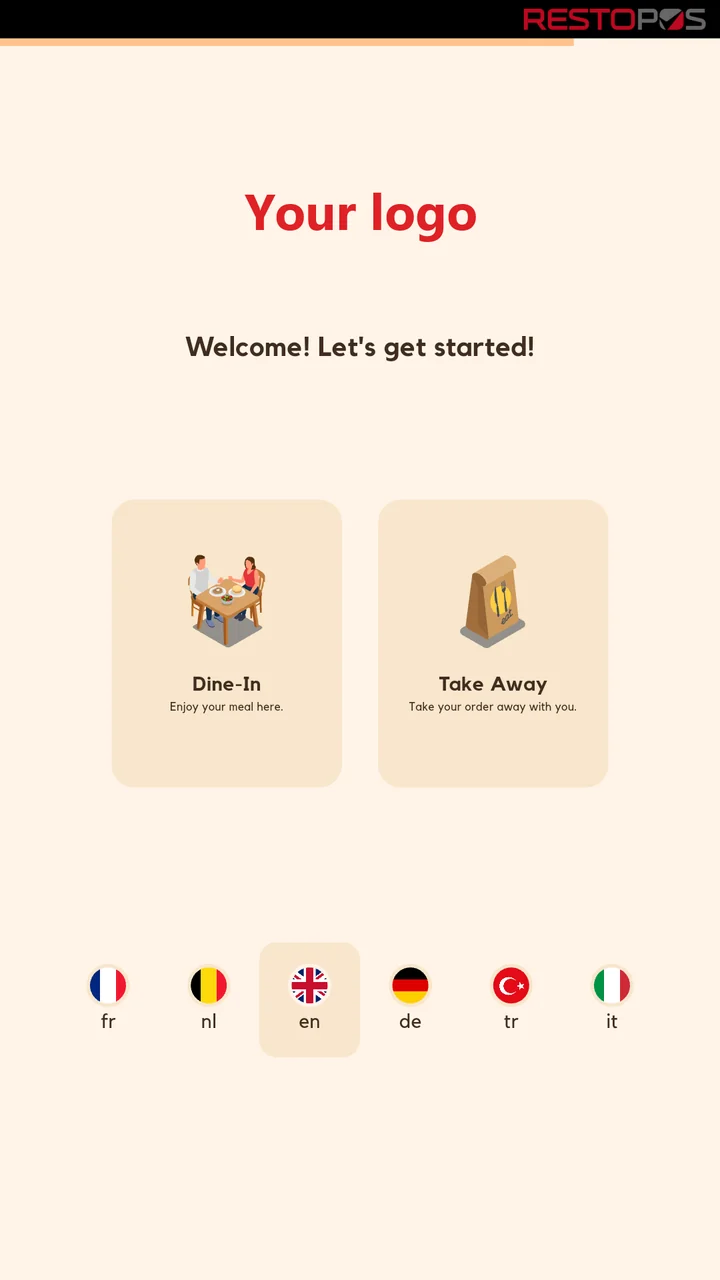
The guest taps the screen, chooses a language and picks eat in or takeaway.
-
2
Choose
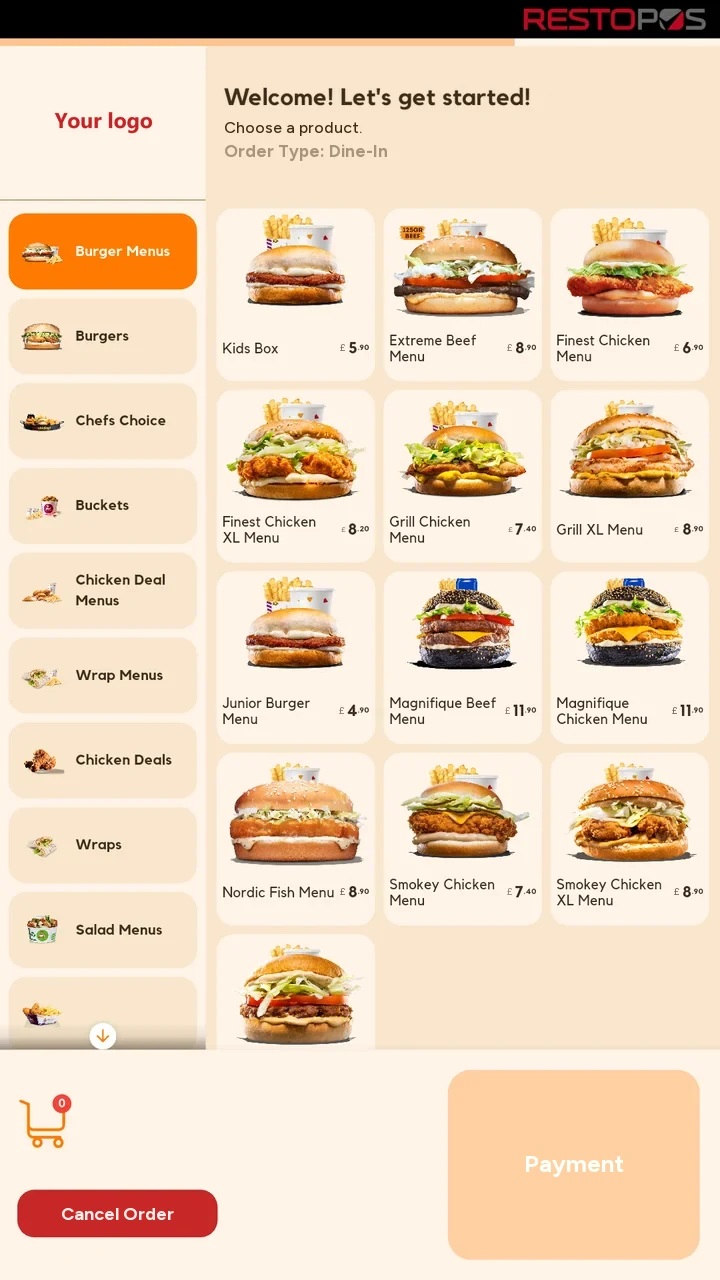
The guest browses the categories and chooses a meal, sauce and drink. The price updates automatically.
-
3
Pay
The guest pays by card at the kiosk, or chooses cash and takes the receipt to the till.
-
4
Order sent
The order goes straight to RestoPOS. The order number is printed on the receipt.
Who is it for?
Every business whose till gets blocked at busy times and that doesn't want guests waiting in a queue.
For every business where guests come to the till to order. The longer the queue, the more time the kiosk saves.
Fast food and burgers
Spread the lunchtime queue across your kiosks; let guests choose their own meal.
Cafés
Let the person at the till make the drinks while the screen takes the orders.
Food courts
Keep orders flowing at peak times in shopping centres and food courts.
Chains
The same screen and the same menu in every branch. Kiosks are managed through RSManager.
Tourist areas
Let international guests read the menu in their own language and order without a translator.
Takeaway-heavy businesses
Eat in or takeaway is chosen at the start; the order is sent with its order type.
Multiple languages
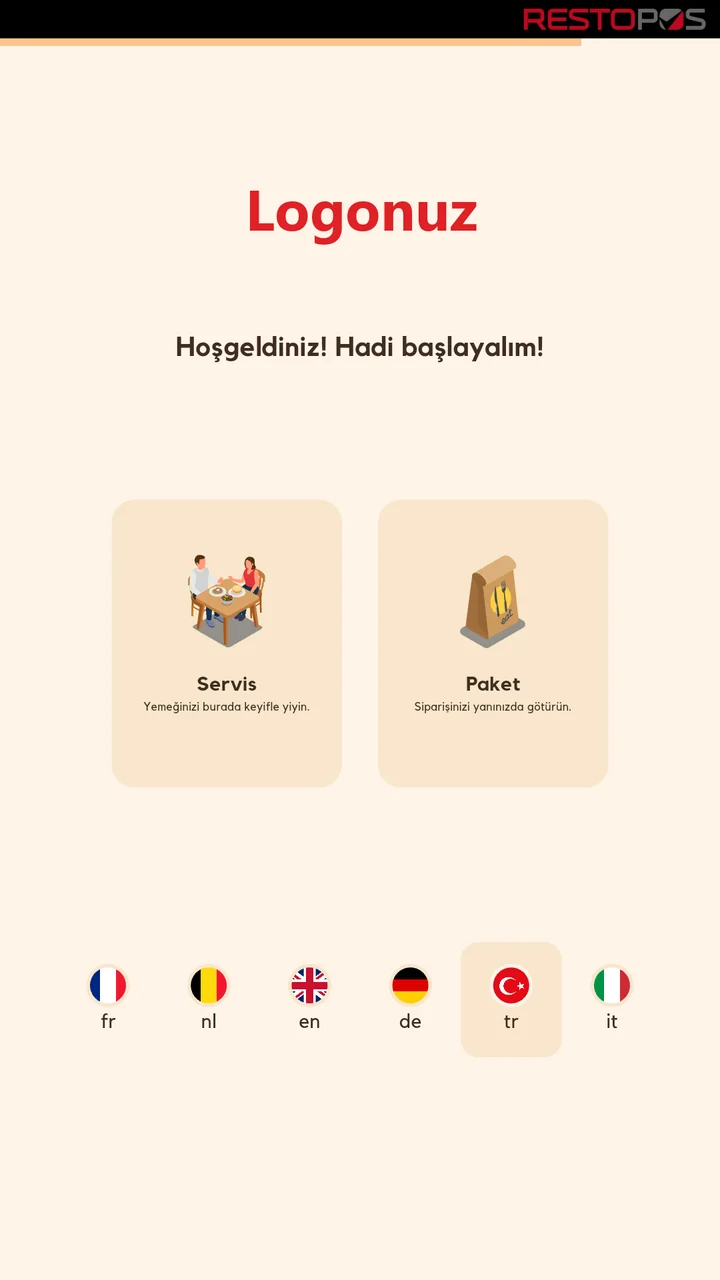
Whatever language your guests speak, the screen speaks it too.
Guests tap their flag on the welcome screen; buttons, messages and product names appear in the language they choose. The business sets the languages. The kiosk shown above runs in Français, Nederlands, English, Deutsch, Türkçe and Italiano.
- Choose by flagChoosing a language takes one tap; guests can find it even without reading.
- Product names are translated tooNot just the buttons, but the product names on the menu too.
- Set centrallyLanguages and translations are sent to the kiosk from head office.
- Eat in or takeawayThe order type is chosen on the first screen.
Modules
Menu, payment, loyalty, management. All on one screen.
The ordering screen your guests see and the rules your business needs are in the same app.
Payment
By card at the kiosk or in cash at the till.
Card payment
With the payment terminal next to the kiosk.
- Adyen or Worldline terminal
- A terminal is set up separately for each kiosk
- The order is created once payment is approved
Cash, at the till
Guests without a card can still order at the kiosk.
- The guest chooses to pay in cash
- The kiosk prints a receipt with a QR code
- The guest shows the receipt at the till and pays
Orders and receipts
Guests follow their order by its number.
- The order goes straight to RestoPOS
- Order number on the receipt
- If the receipt can't be printed, the number is shown on screen
Loyalty
The kiosk recognises your guests.
Recognition by QR code
Integrated with the Loyalty Management System.
- The guest scans the QR code in the app or enters the code
- The kiosk greets the guest by name
Campaigns
A personal offer in the basket.
- Personal campaign suggestion
- Basket-specific gift
- Applied with one tap
Points
Points are checked before payment.
- The guest's points balance is checked at payment
- The QR button is switched on if the business wants it
Operations
The kiosk keeps itself in order.
Advertising screen
An idle kiosk shows campaign images.
- Images rotate in turn
- A tap starts an order
Abandoned orders
If the guest walks away, the kiosk gets ready for the next one.
- If the screen is not touched for a set time, the guest is asked whether to continue
- If there is no answer, the basket is cleared and the screen returns to the start
Ordering hours
The kiosk only takes orders during set hours.
- Start and end time
- Out-of-service message outside those hours
Always up to date
Menu and price changes reach the kiosks automatically.
- Menu, price, image and language updates
- On-screen warning if the connection drops
- Kiosk mode: guests can't leave the app
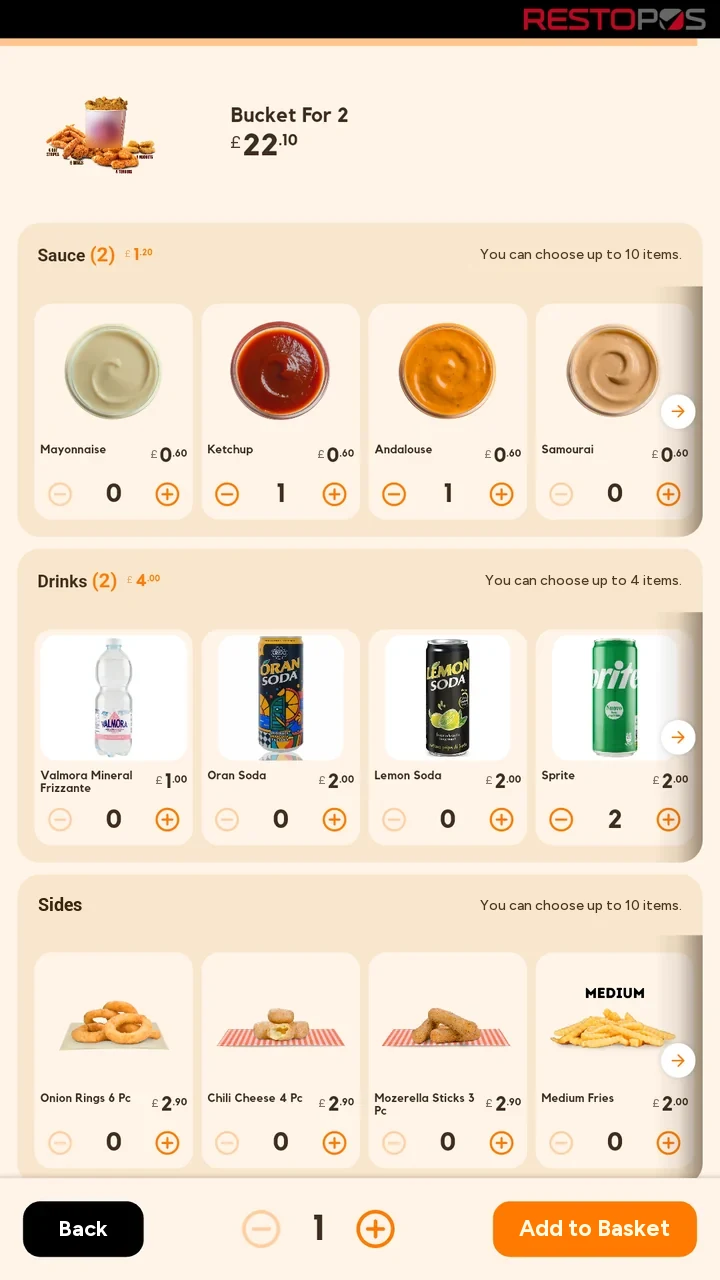
Meal (combo) selection
Let guests build the meal and the screen work out the price.
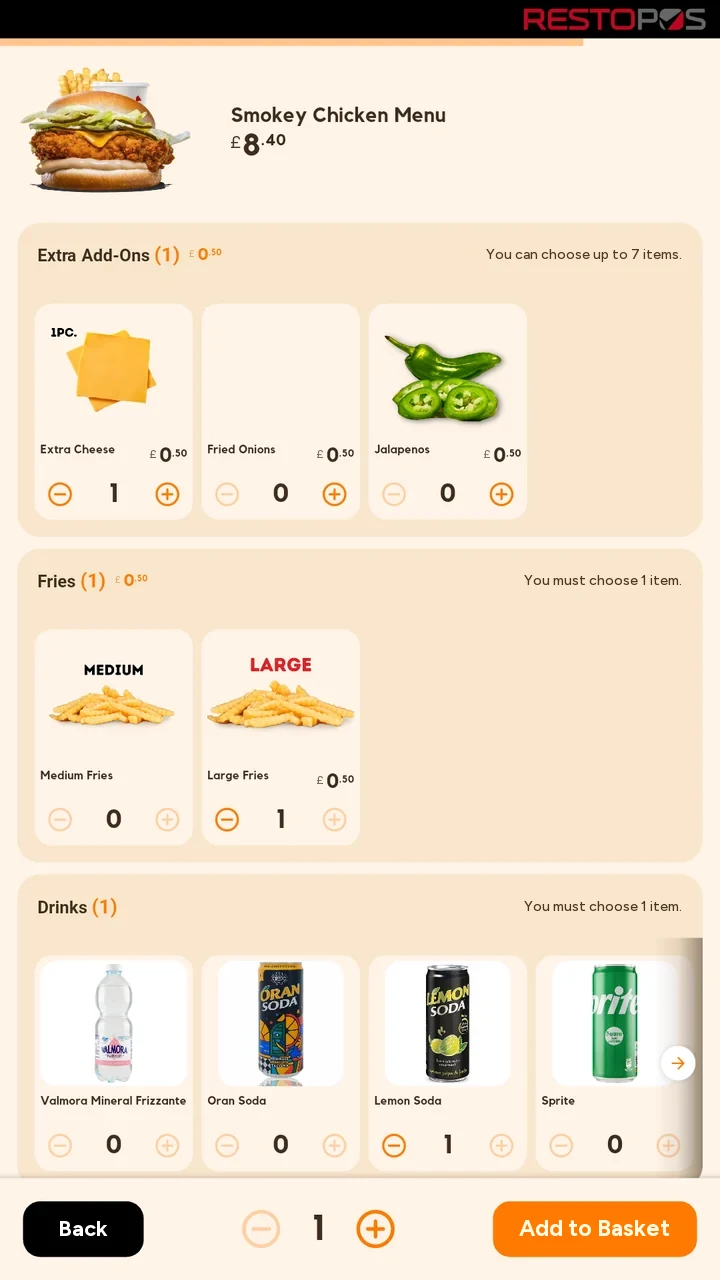
Every question asked at the till, such as "large fries?" or "which drink?", becomes an on-screen choice at the kiosk. Guests see their sauce, drink and extras as they choose them; choices with a surcharge are added to the price automatically. A meal can't be added to the basket until the required choices are made.
- Choices with imagesEvery option with its own image and price.
- Groups with rulesSuch as "You must choose 1 item" or "Up to 10 items".
- Live priceThe meal price updates with every choice.
- Nothing left outNothing is added to the basket until required choices are made.
Basket
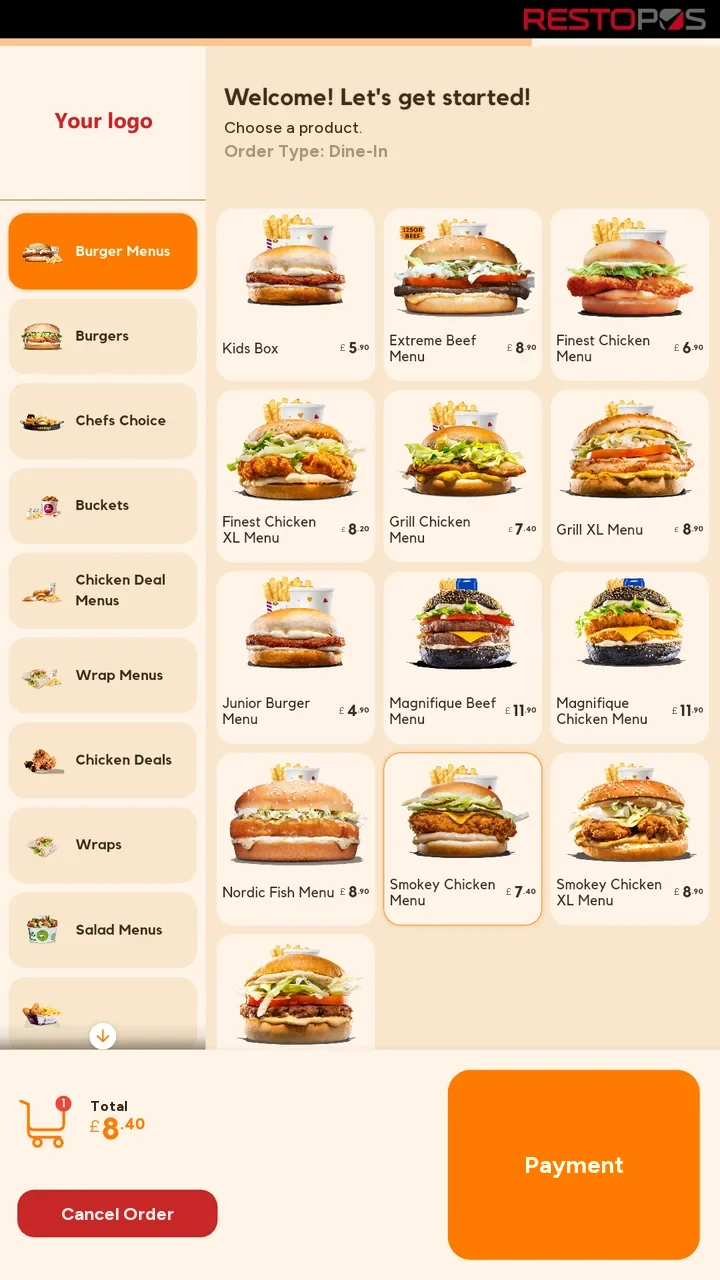
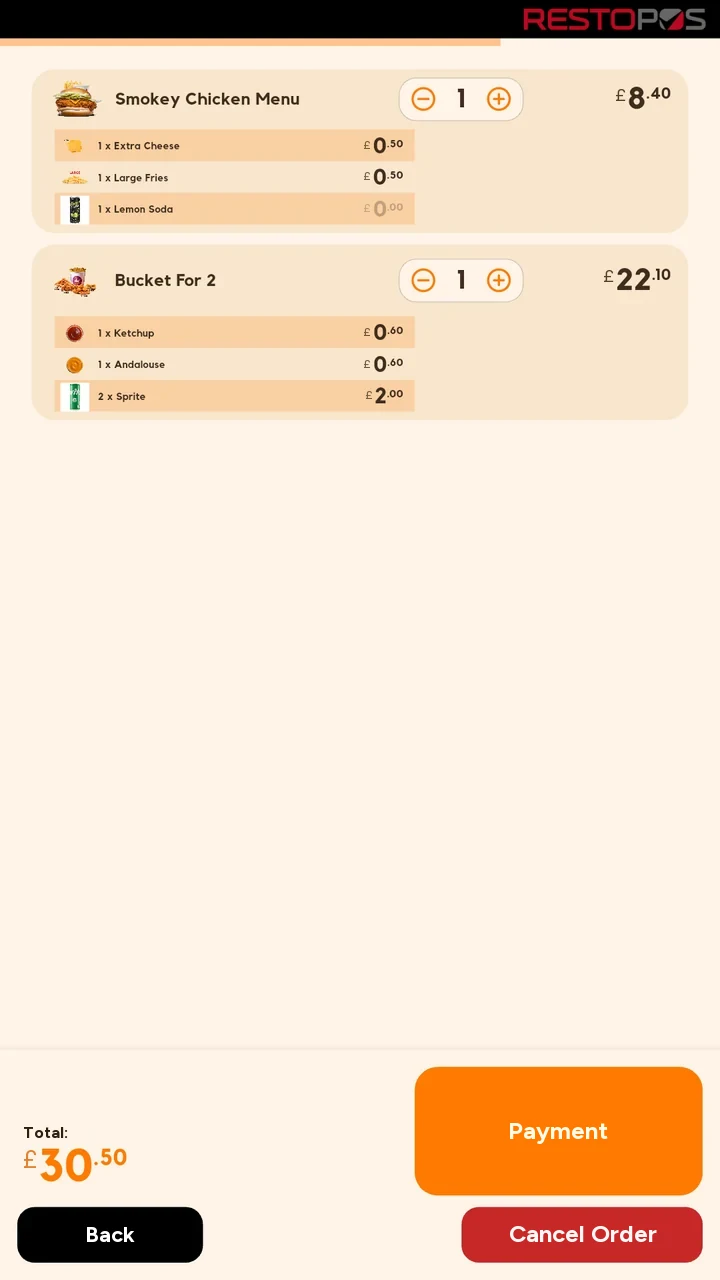
Guests see what they are paying for before they pay.
In the basket, the chosen sauce, drink and extras are listed under each product with their prices. Guests can increase or decrease the quantity or remove a product; the total is on screen at every step. The order is sent exactly as the guest chose it.
- Line by lineEvery choice in the meal on its own line, with its price.
- Quantity and editingChange the quantity or remove a product.
- Total always visibleThe basket and total stay at the bottom while guests browse the menu.
- A gift just for youA basket-specific campaign for loyalty members.
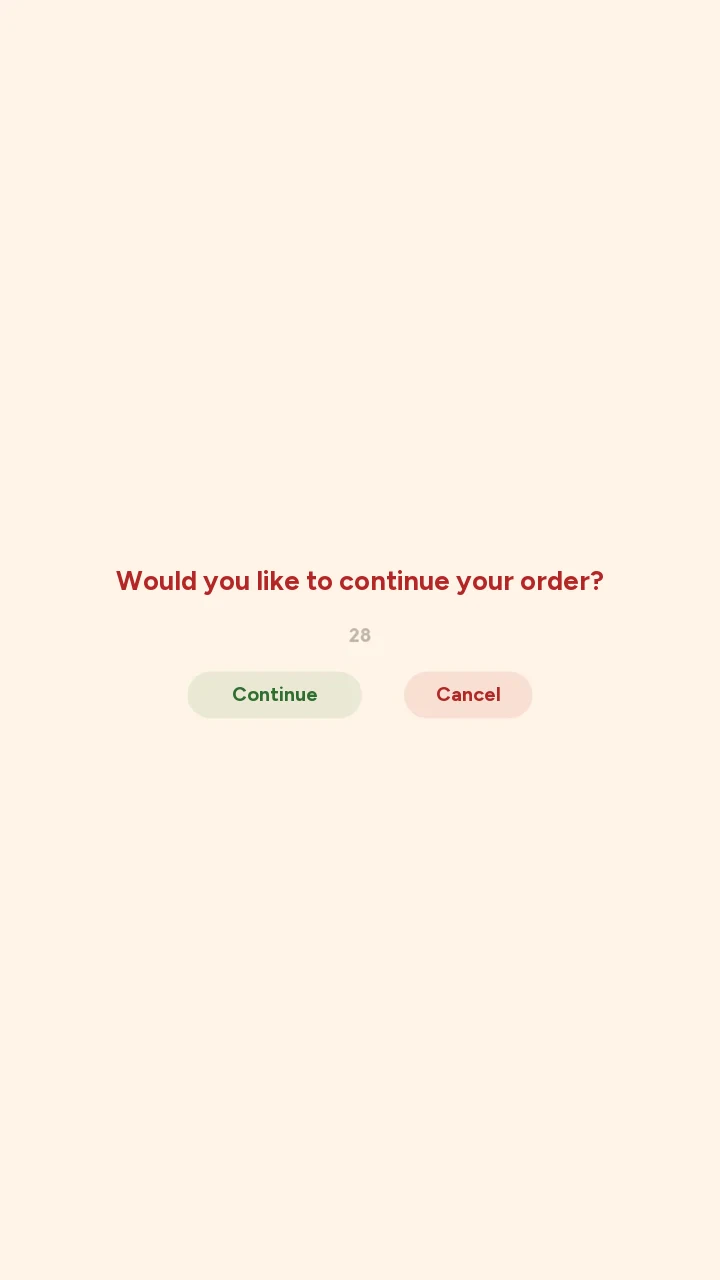
When idle or abandoned
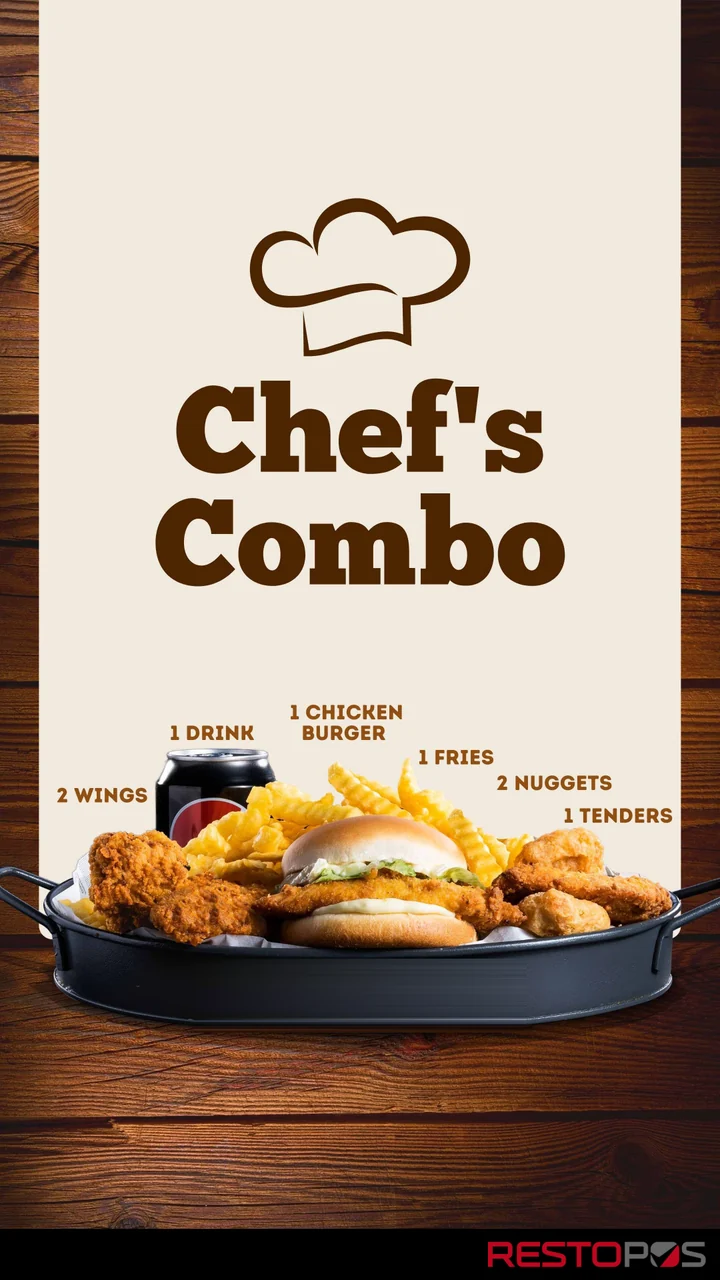
The kiosk sells even when idle. An abandoned order doesn't hold up the queue.
When nobody is using it, the kiosk shows your campaign images; a guest's order starts with a tap. If a guest leaves an order halfway and walks away, the kiosk asks "Would you like to continue?" after a set time. If there is no answer, it clears the basket and returns to the start for the next guest.
- Advertising screenCampaign images rotate in turn.
- Tap to startTapping the screen starts an order.
- Countdown promptIf the guest is still there, they carry on.
- Clean startA half-finished basket isn't left for the next guest.
Ecosystem
Not a separate system. The guest-facing side of RestoPOS.
The kiosk takes the menu and prices from RestoPOS and sends orders to RestoPOS. You manage your kiosks through RSManager and recognise your loyalty members with the Loyalty Management System.
RSManager
Kiosks, the menu and prices are managed through RSManager.
Central managementLoyalty Management System
Guests are recognised by their QR code; campaigns and points at the kiosk.
Loyalty Management SystemRestoPOS
The menu and prices come from RestoPOS; orders go straight to RestoPOS.
Point of salePayment terminals
Card payment with the Adyen or Worldline terminal next to the kiosk.
How do you get started?
If your menu is ready, the road is short.
If you use RestoPOS, your menu and prices are already set up. All that's left is to install and pair the kiosk.
-
1
Demo call
We review your business, your busy hours and your menu together.
-
2
Installation
RestoPOS Kiosk is installed on your Android or Windows kiosk device.
-
3
Pairing
The kiosk connects to RestoPOS; the menu, languages, payment terminal and printer are set up.
-
4
Service
Your guests order on screen from day one.
Frequently asked questions
Questions you may have.
Which devices does RestoPOS Kiosk run on?
Android and Windows kiosk devices. Kiosks are in active use in the field on both platforms.
How do guests pay?
By card, at the Adyen or Worldline terminal next to the kiosk. For guests who want to pay in cash, the kiosk prints a receipt with a QR code; the guest shows the receipt at the till and pays there.
Do I need to enter the menu and prices separately?
No. The menu, prices and images come from RestoPOS; you manage your kiosks through RSManager. Any change you make appears on the kiosks automatically.
How many languages are supported?
The business sets the languages. Guests choose theirs on the welcome screen by tapping their flag; buttons and product names appear in the chosen language.
What happens if a guest leaves an order halfway?
If the screen is not touched for a set time, the kiosk asks whether the guest wants to continue. If there is no answer, the basket is cleared and the screen returns to the start for the next guest.
Does it work with my loyalty programme?
Yes. RestoPOS Kiosk is integrated with the Loyalty Management System. The guest scans the QR code in the app; the kiosk greets them by name and offers their personal campaign in the basket.
Who uses RestoPOS Kiosk?
Hundreds of businesses in dozens of countries across Türkiye, Europe and Africa serve their guests with RestoPOS Kiosk every day.
Related solutions
QR Menu (MyMenu)
Digitise your menu and stop paying for printing. Price and content changes appear instantly.
ExplorePay at table
Guests scan the table QR code, see the bill, split it and pay by card or mobile wallet.
ExploreRSManager QR Menu, Online Ordering and Till
From online ordering and payment through a QR menu in 12 languages, to the till and table management, to the kitchen display and couriers: your restaurant's front of house in one system.
ExploreDon't keep guests waiting in a queue. Let them order on screen.
Let us show you RestoPOS Kiosk with your own menu.
Why don't we list prices?A café with a single till and a chain with many branches don't have the same needs; we work out the price with you based on your number of branches, your hardware and the features you choose.